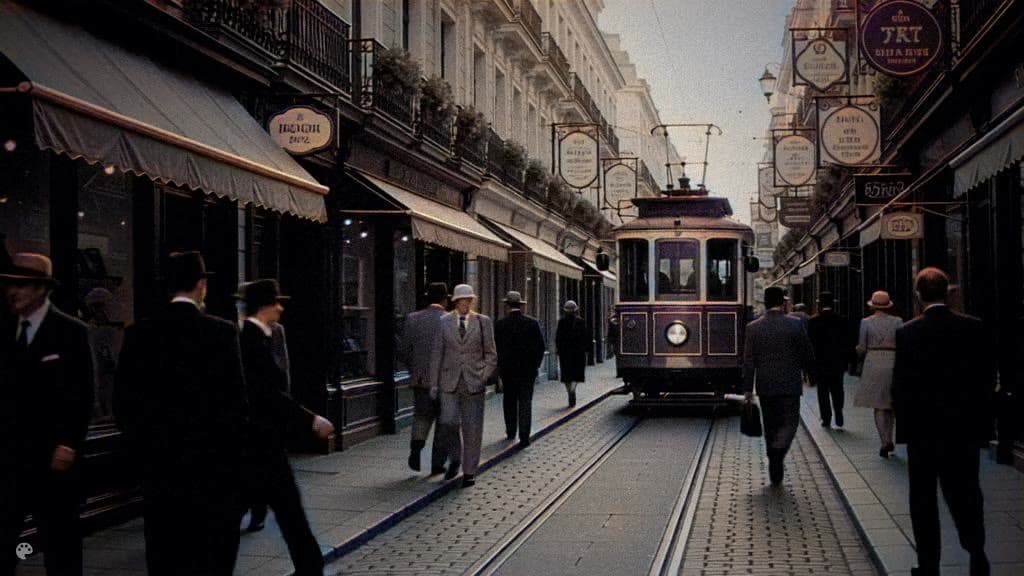
The best free AI video colorizer in 2026, in one sentence
For most people, the best free AI video colorizer in 2026 is Pixelift: it runs in your browser, returns a colorized preview of your footage in seconds, needs no software install, and adds no watermark to the preview. If you are comfortable with Python and a GPU, the open-source DeOldify model is the strongest DIY option — but it requires technical setup. Everything else we tested is either watermarked, capped to a few seconds, or desktop-only.
We ran the same 12-second black-and-white clip (a 1950s home movie, transferred from 8mm) through five free tools in June 2026. Below is the honest breakdown: what each one costs, where it draws the free line, and which to choose for your footage.
August 2026 update: HD colorization with sound, clips up to 5 minutes
Since this comparison was first published, Pixelift replaced its rendering engine with an in-house DDColor HD pipeline — and it changes the verdict for family archives in three ways:
- Your original audio is preserved. Every other tool in this list (including raw DeOldify) returns a silent file. If the tape has your grandmother’s voice on it, that matters more than any colour.
- Clips up to 5 minutes render in HD in one pass — no more 30-second ceiling.
- Scene-aware temporal stabilization: colour is smoothed within each scene and reset at cuts, so long takes don’t flicker and scene changes don’t bleed colour.
The free preview works the same as before; the HD render with sound is what the credits buy.
Quick comparison: 5 free AI video colorizers
| Tool | Best for | Free tier | Watermark | Install needed |
|---|---|---|---|---|
| Pixelift | Most people — fast, web-based, HD | Free colorized preview | No (preview) | No — runs in browser |
| DeOldify | Developers who want full control | Fully free (open source) | No | Yes — Python + GPU/Colab |
| Hotpot.ai | Quick one-off images & short clips | Limited free credits | On free tier | No |
| Media.io | Casual users already in its editor | Short clips only | On free tier | No (web) / app |
| CapCut | Social creators editing on mobile | Bundled in editor | Varies | Yes — desktop/mobile app |
1. Pixelift — best all-round free AI video colorizer
Pixelift's video colorizer is the option we recommend for most people because it removes the two biggest barriers: software installs and upfront payment. You upload a black-and-white clip, the AI returns a colorized preview in seconds, and you only pay if you want to render the full clip in HD. There is nothing to download and nothing to configure.
What stood out
- Free preview, no watermark. You see real colorized frames from your own footage before deciding anything.
- Browser-based. Works on any device — no GPU, no Python, no desktop app.
- Temporally stable. Colour stays consistent frame-to-frame, which is where cheaper tools tend to flicker.
- Private by design. Footage is processed on EU servers and not used to train models.
Where it costs money
The colorized preview is free. Rendering the full-length clip in HD uses credits (priced per video, not a subscription), so a single restoration of a family film costs a few dollars rather than a monthly commitment.
2. DeOldify — most powerful free option (if you can code)
DeOldify is the open-source model that quietly powers a lot of the colorization industry, including high-quality pipelines. It is genuinely free and produces excellent results, especially with a high render factor. The catch: you need to run it yourself in Python — typically via a Google Colab notebook or a local machine with a capable GPU. For a developer this is the best free-forever choice. For everyone else, the setup, dependency management, and frame-by-frame processing are a real barrier.
3. Hotpot.ai — handy for quick one-offs
Hotpot offers a simple colorization tool with a limited pool of free credits. It is fine for testing on a short clip or a still, but the free tier is small and outputs on the free plan are watermarked. Quality is acceptable for casual use but trails Pixelift and DeOldify on longer footage.
4. Media.io — okay if you already use its editor
Media.io bundles AI colorization into a broader online video editor. If you are already editing inside it, the feature is convenient. As a dedicated free colorizer, though, it caps free output to short clips and applies a watermark unless you upgrade.
5. CapCut — for social creators on mobile
CapCut includes some AI restoration and enhancement features inside its editor. It is best when colorization is one step in a larger mobile-editing workflow rather than the goal itself. You will need to install the app, and colorization quality on archival footage is inconsistent compared with dedicated tools.
How to choose
- You want the easiest path to a good result: use Pixelift — free preview, no install.
- You are a developer who wants free-forever and full control: use DeOldify.
- You only need a few seconds and don't mind a watermark: Hotpot or Media.io.
- You are editing for social on your phone: CapCut.
How AI video colorization actually works
Modern colorizers treat a black-and-white video as a sequence of frames and predict plausible colour for each pixel based on a model trained on millions of colour images. The hard part is not colouring one frame — it is keeping colour consistent across frames so the result doesn't flicker. Good tools add temporal smoothing and let you trade speed for quality via a render-factor setting. This is why a quick web preview can look slightly softer than the final HD render.
Tips for the best results
- Start from the cleanest source you have. Colorization amplifies whatever is in the frame, so a sharp transfer beats a blurry re-recording.
- Deflicker or stabilise badly degraded footage first. For very damaged film, restore before you colorize.
- Preview before committing. Always check colorized frames from your own clip rather than trusting a sample reel.
- Keep expectations realistic on historical accuracy. AI predicts likely colours, not documented ones — great for memories, not a substitute for archival research.
Frequently asked questions
What is the best free AI video colorizer in 2026?
For non-technical users, Pixelift is the best free option: it gives a no-watermark colorized preview in the browser with no install. For developers, the open-source DeOldify model is the most powerful free choice but requires Python and a GPU.
Can I colorize video online for free without watermark?
Yes. Pixelift's colorized preview is free and unwatermarked, so you can see real results on your footage before paying for a full HD render. Most other web tools watermark their free output.
Can I colorize old family films from VHS or 8mm?
Yes — these are the most common use cases. Transfer the tape or film to a digital file first, then upload it. For best results, restore heavy damage before colorizing. See our video restoration tool for damaged footage.
Is AI video colorization historically accurate?
No tool can guarantee historical accuracy. AI predicts the most plausible colours from training data. The results are excellent for bringing memories to life, but for documented colours (uniforms, brands, flags) you should verify against references.
Does AI video colorization keep the original audio?
Usually not — most tools rebuild the video from frames and return a silent file. Pixelift’s HD engine is the exception: it remuxes your original soundtrack back into the colorized video, so voices and background sound survive untouched.
How long does it take?
A colorized preview takes seconds. A full HD render depends on clip length and resolution, typically a few minutes for a short family clip.
Bring your old footage back to life
If you just want a fast, good-looking result with no software to install, start with a free preview on Pixelift's AI video colorizer — upload your black-and-white clip and see it in colour in seconds.